Meet our new EO reps: Yas and Alice
19th October 2026

15th January 2018
Roughly a 7 minute read by
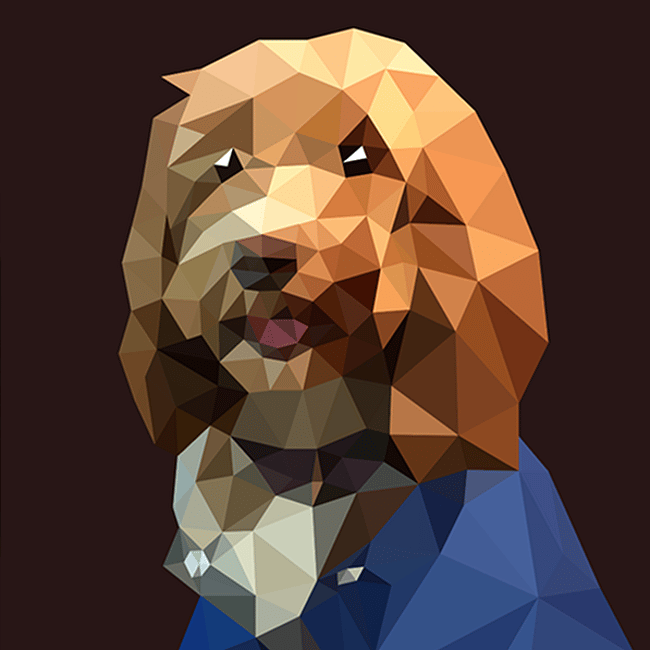
In this tutorial, we’ll show you how to draw low poly art in Adobe Illustrator using a photograph as your starting point. We’ll be using the Pen Tool, Live Paint Bucket and Eyedropper Tool to build up a low poly illustration from connected triangles, then colour it using the original image as a guide.
It can feel a bit fiddly at first. Lots of clicking. Lots of triangles. A fair bit of wondering why you started. But once you’ve practised it once or twice, it quickly starts to make sense.
For this example, we’ve used a photo of one of our lovely office dogs, Betty. Because if you’re going to spend time creating low polygon art, you might as well start with a good subject.
Before you jump into Illustrator, it’s worth getting a few things ready. Low poly art is fairly simple once you get going, but the process is much easier if your photo, tools and layers are set up properly from the start. Future you will be grateful. Probably.
You’ll need:
Here’s the low poly art process in short. The actual doing takes a bit longer, mainly because Illustrator apparently enjoys making us click things hundreds of times.
Set up a new document in Illustrator, and import the photo file you wish to base your design on. Create a new layer, and lock layer 1 with your photo in it.
Select the Pen tool (p) from the tools panel. Give the path a bright colour and a thick enough width that it will stand out against your photograph.
Begin by drawing triangles over the top of your image. You can continually draw the triangles from one to the next without creating a new complete shape each time. For example when you’ve drawn your first triangle, you can draw 2 lines from this to create the next, which avoids any overlapping paths. Hold the shift key when you see your cursor turn to the minus symbol (As we don’t want to delete any anchor points) but we do want all the anchor points aligned on top of each other, and the triangles connecting.
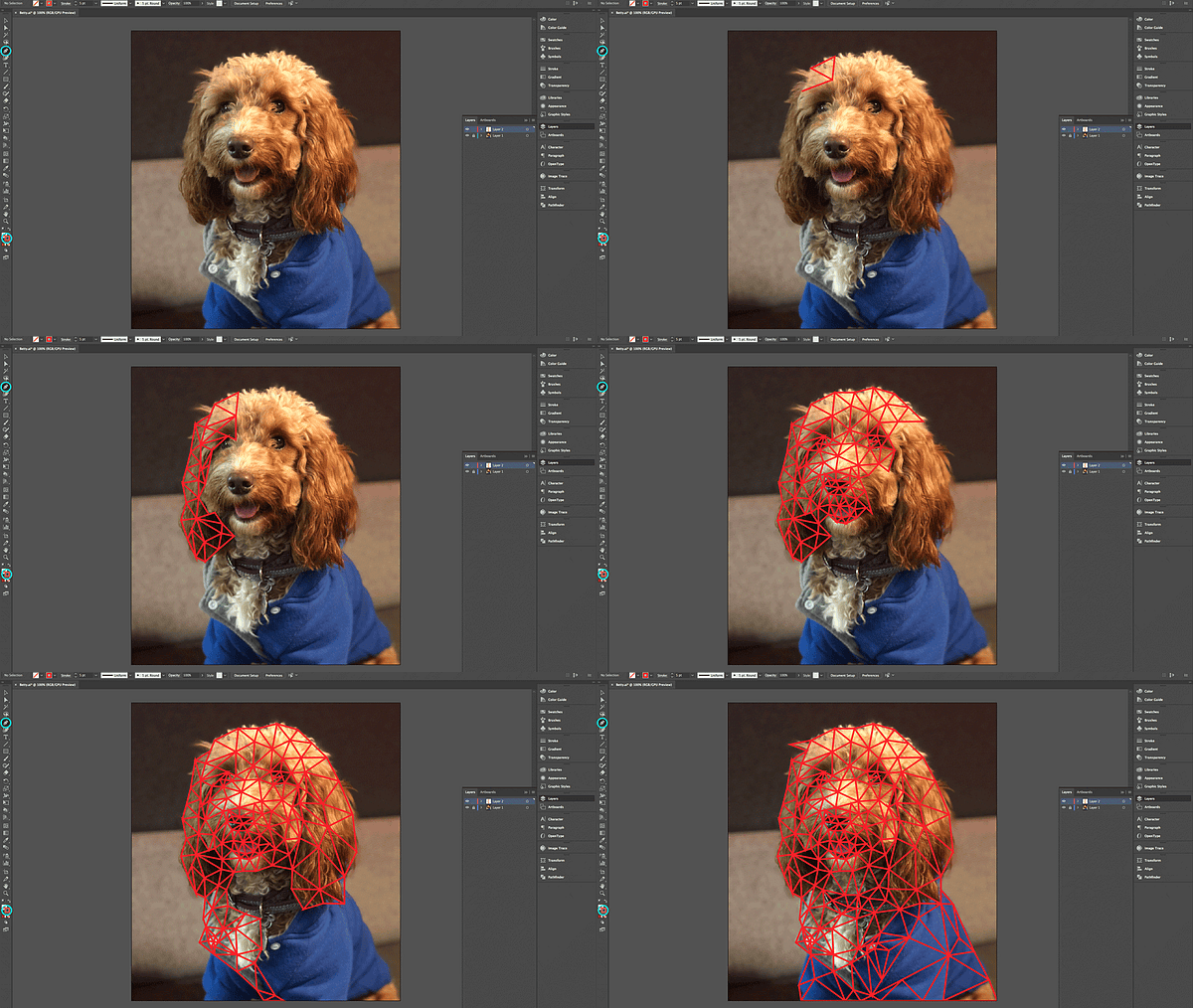
Once all your connecting triangles are drawn, we now need to make it a live paint object so we can fill the triangles; as we’ve drawn the triangles continuously there are many open paths so we can’t simply just fill them. First select them all, then select Object > Live Paint > Make.
You’ll need to be using both the Live Paint Bucket tool (k) and the Eyedropper tool (i). They both can be found in the left hand side tool bar; the Live Paint Bucket is hidden under the Shape Builder Tool. However, using the shortcuts will make things much easier. First select the Eyedropper Tool (i), and select the most common background colour from your photograph, from within your first triangle. Then switch to the Live Paint Bucket tool (k) and click to fill the triangle with that colour.
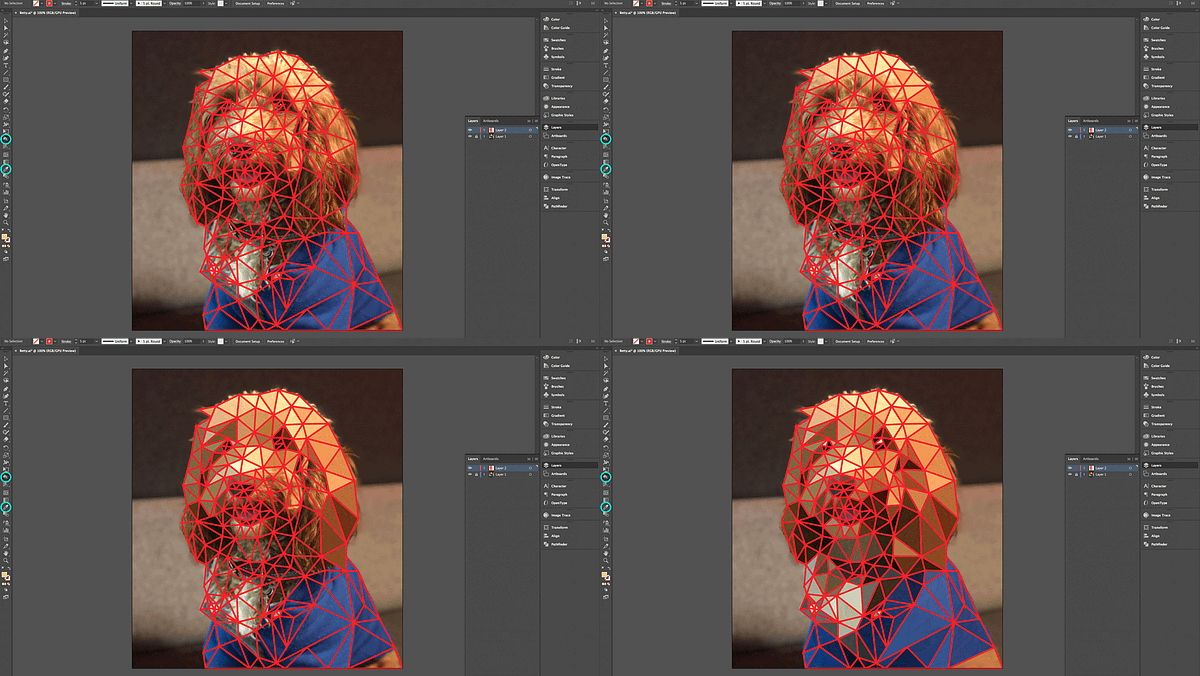
Repeat this action: first picking the colour (i) and then filling (k) for each and every triangle, until you’ve filled your entire shape.
Hide layer 1 with your photo in it. Now select everything in layer 2, and remove the stroke. You should now have your low poly drawing!
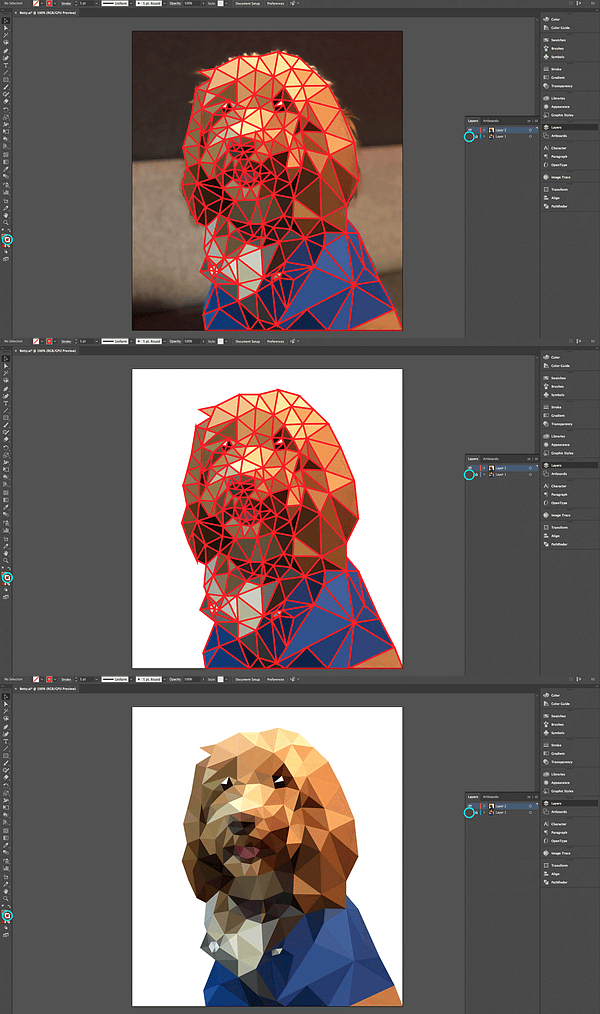
This is still a live paint object – in case you want to edit each triangle like a normal shape, you need to select everything, and go to Object > Expand, and this will separate the shape into individual triangles.

Low poly art is a nice reminder that good design is often built from simple parts: shapes, colour, contrast and a bit of patience. The same is true for bigger creative work. Whether it’s an illustration, a campaign visual, a website, or a full digital design system, the details matter.
If you need visuals that do more than just look nice, our digital design team can help turn ideas into creative that feels considered, on-brand and ready to use. No endless triangle clicking required.
The main tools you need are the Pen Tool, Live Paint Bucket and Eyedropper Tool. You’ll also need a clear reference image and a locked photo layer to draw over. That last bit matters, unless you enjoy accidentally moving your photo halfway through. We don’t recommend it.
A clear photo with good contrast works best. Look for an image with defined light and shadow, a strong subject and enough detail to make the shapes interesting. Very flat, blurry or low-quality photos can make the final low poly illustration harder to build and less effective.
Low poly art is beginner-friendly, but it does take a bit of practice. The tools are simple enough, but getting the triangles to look balanced can take a few attempts. Start with a simple subject before moving on to detailed portraits, pets or anything with lots of tiny features.
There is no fixed number of triangles for low poly art. Use smaller triangles for detailed areas like eyes, facial features or strong shadows, and larger triangles for simpler areas with less detail. The aim is not to use as many triangles as possible. Illustrator has enough ways to waste your time already.
Once your triangles are drawn, turn them into a Live Paint object and use the Eyedropper Tool to pick colours from your reference photo. Then use the Live Paint Bucket to fill each triangle. Repeat until the whole shape is coloured, then hide the photo layer and remove the strokes.
19th October 2026
14th October 2026

6th October 2026

14th September 2026